Getting your bank transactions in
Before the app can match your receipts to real payments, it needs to see what went in and out of your business bank account. There are two ways to bring that data in, and you can use whichever suits you, or both.
Two ways to add transactions
You can get your bank transactions into the app in one of two ways:
- Connect your bank automatically using Open Banking. Once connected, the app pulls in new transactions for you, so there's nothing to download or upload by hand.
- Upload a statement file that you've exported from your online banking, such as an ING CSV or an MT940 file.
Both methods feed into the same transactions list, and the app treats them identically from there on. If you connect your bank, you usually won't need to upload anything again.
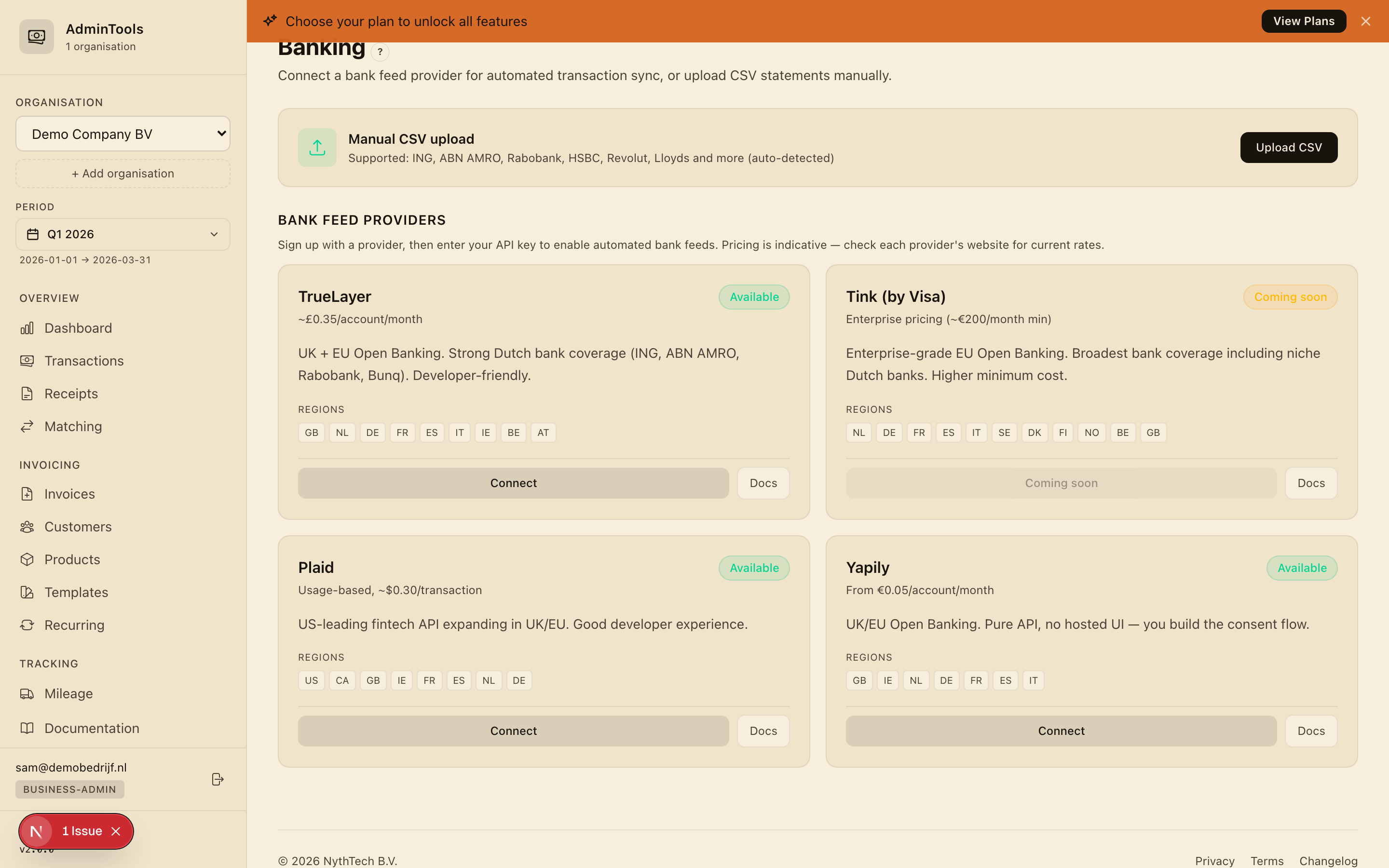
Connect your bank automatically (Open Banking)
Open Banking is the simplest option. You give the app secure, read-only permission to see your transactions, directly through your bank's own login. The app can never move money, it can only read what has already happened on the account.
To connect a bank:
- Go to the Banking page and click Connect Bank.
- Pick your country from the list.
- Find your bank in the list of available banks. You can type in the search box to narrow it down, then click your bank.
- Log in at your bank. You're taken to your bank's own secure login page, where you sign in and grant read-only access, exactly as you would when logging in normally.
- You're done. You're brought back to the app, your connection is saved, and your linked accounts appear on the Banking page.
After connecting, the app discovers the accounts linked to that login, showing each account's IBAN, holder name and currency. From then on, your transactions are pulled in for you.
Tip: The login and permission step happens entirely on your bank's website. You never share your banking password with the app.
Which countries and banks are supported
You can connect banks from six European countries:
- Netherlands
- United Kingdom
- Germany
- Belgium
- France
- Spain
For the Netherlands, the major banks are all supported, including ING, ABN AMRO, Rabobank, SNS Bank, ASN Bank, Triodos Bank, Bunq, Knab and RegioBank. The full, current list of banks for each country appears when you select that country in the Connect Bank window, so it's always up to date.
Keeping a connection in sync, and reconnecting when it expires
Each connected bank shows up as a card on the Banking page. The card tells you everything at a glance: your bank's name, the connection status, the date you connected, the accounts linked to it, and when transactions were last pulled in.
From each card you can:
- Sync Now — pull in the latest transactions straight away. This is handy when you want today's payments without waiting.
- History — see a log of recent syncs, showing how many transactions were added each time and whether the sync succeeded.
- Disconnect — end the connection. You'll be asked to confirm first.
For security reasons, banks set a time limit on Open Banking permissions, so a connection will eventually expire. When that happens, the connection card shows an expired status. To start receiving transactions again, simply reconnect the bank using the same steps as above. The Sync Now button is only available while a connection is active, so an expired status is your cue to reconnect.
Upload a statement file instead
If you'd rather not connect your bank, or your bank isn't listed, you can export a statement from your online banking and upload the file. The app reads ING CSV files (the primary format) and MT940 files (.sta, .mt940, .swi) as a fallback.
To upload a statement:
- Make sure the correct business is selected in the sidebar first. Each business has its own bank account, so transactions are added to whichever business you have open.
- Go to the Transactions page.
- Drag your statement file onto the upload area — it highlights when it recognises a valid file — or click to browse for the file and then click Upload.
When the import succeeds, a green banner confirms how many transactions were imported out of the rows in the file, names the file you uploaded, and flags any rows it couldn't read. If something goes wrong — the wrong format, an empty file, or a connection hiccup — a red banner explains the problem so you can try again.
The app handles the quirks of Dutch bank exports for you. ING CSV files are semicolon-separated and use a comma as the decimal point (so 1.234,56 is read correctly), and the app accepts both Dutch and English column headings, so it doesn't matter whether you exported from the Dutch or English version of your online banking.
What the transactions list shows
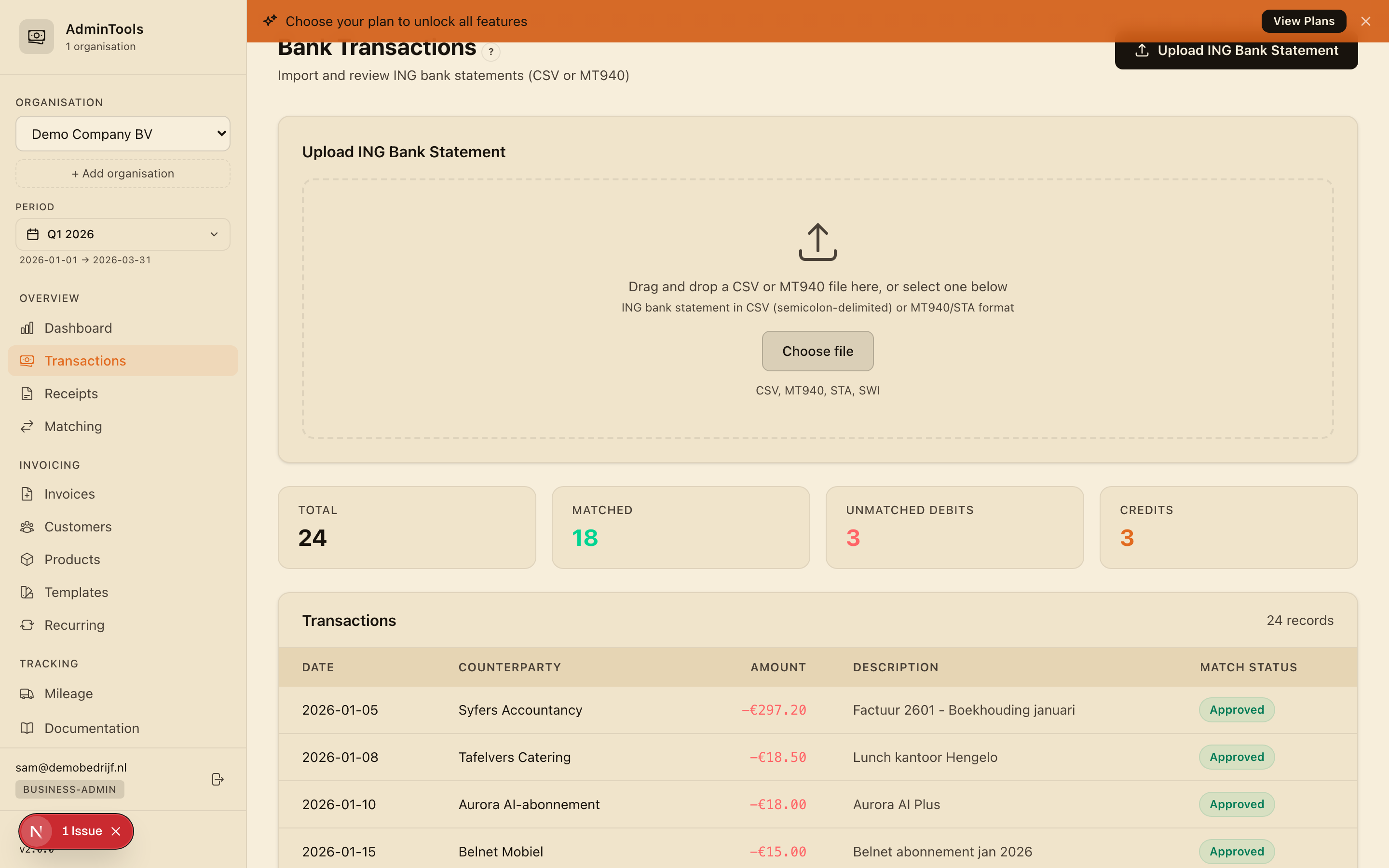
Once transactions are in, they appear in a table for the quarter you're viewing. Each row shows:
- Date of the transaction
- Counterparty — the other party in the payment
- Amount — money going out is shown in red with a minus sign (for example
-€297.20), and money coming in is shown in green with a plus sign (for example+€12,100.00) - Description — the payment reference or message, shortened to fit, with the full text on hover
- Match status — whether the transaction has been matched to an invoice yet
Four summary cards sit above the table to give you the shape of the quarter at a glance:
- Total — how many transactions are in for the quarter
- Matched — how many have already been linked to an invoice
- Unmatched debits — outgoing payments with no matching invoice yet. These are the ones that need your attention.
- Credits — incoming payments, tracked separately since they aren't matched against purchase invoices
Outgoing payments that aren't yet linked show a grey Unmatched label, and incoming payments show a blue Credit label. To work through the unmatched ones, head to the matching screen — that's where receipts and payments get paired up.
No duplicates: re-importing is always safe
You never have to worry about importing the same statement twice. Whether transactions arrive through an Open Banking sync or a file upload, the app recognises ones it has already seen and skips them, so nothing is doubled up.
That means you can safely click Sync Now as often as you like, re-upload an overlapping statement, or import a fresh file that covers some of the same dates — only genuinely new transactions are added, and your totals stay correct.