Inviting your team and your accountant
Reconciliation rarely happens with just one person. You might have a colleague who scans receipts, a partner who approves the bigger expenses, and an accountant who needs to pull the figures together each quarter. This page shows you how to bring those people in, decide what each of them can do, and keep a clear record of who did what.
Inviting someone with a share link
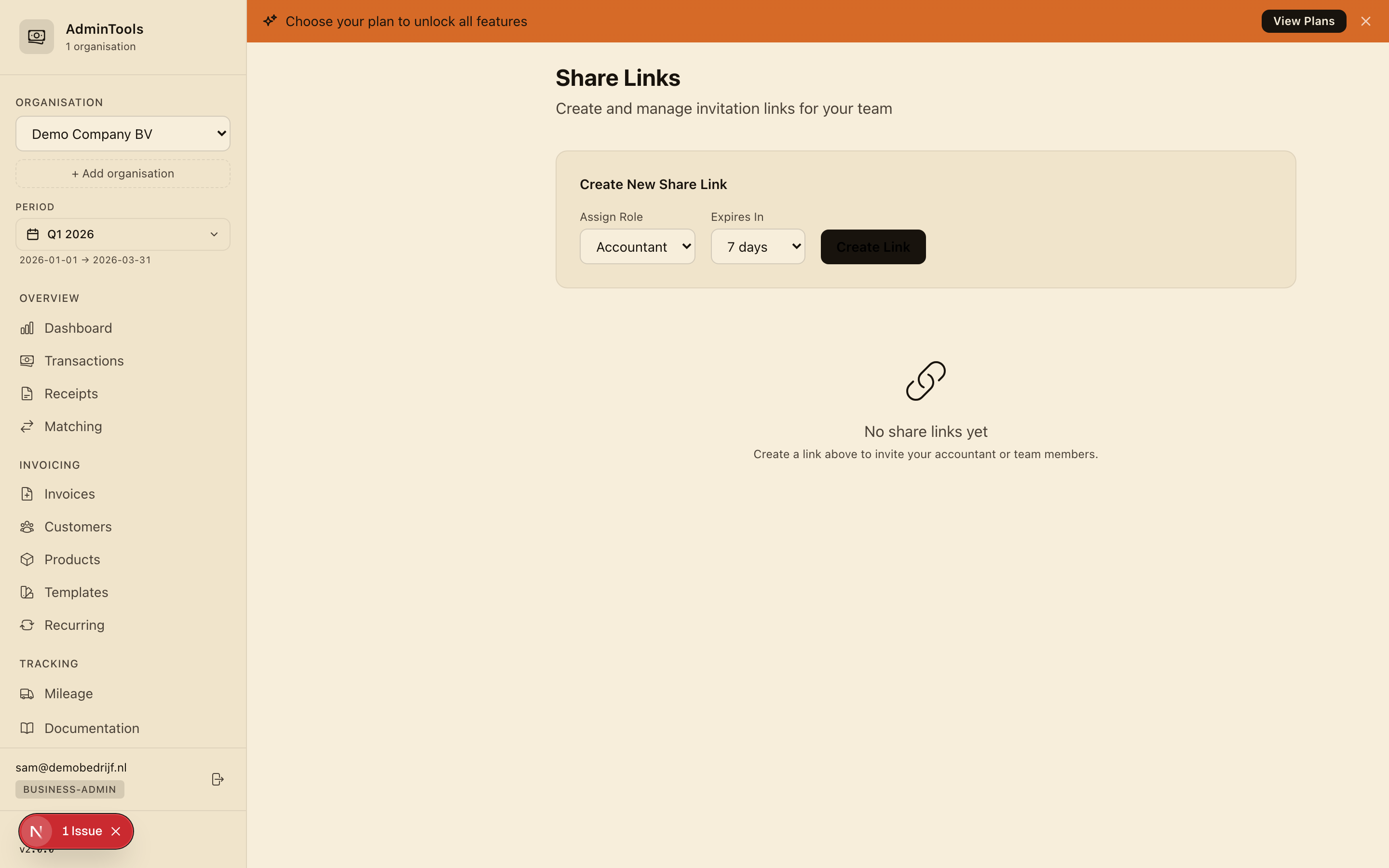
The quickest way to add a collaborator is with an invite link. You generate a link, choose what the person will be able to do, set how long the link stays valid, then send it to them however you like, by email, by message, or copied into a chat.
To create one:
- Open the Share screen for your business.
- Choose the access level the person should have (more on these below).
- Pick an expiry for the link: 1, 3, 7, 14 or 30 days.
- Click Create Link.
- Copy the link that appears and send it to the person you want to invite.
When they open the link, they see your business name and the access level you chose, fill in their name and email, and they are in. No password to set up in advance and nothing for you to configure on their behalf.
Tip: Pick the shortest expiry that still gives the person time to accept. A link that expires in a few days is one less thing to remember to clean up later.
Who can do what
When you invite someone, you decide how much they can do. The access levels are deliberately simple, so you can pick one at a glance without reading a manual.
Owner
Full run of the business. An owner can do everything: import bank data, sync and upload receipts, run matching, approve expenses and matches, change settings, invite other people, and view the activity log. This is the level you hold yourself, and the one to give a co-owner or office manager you trust completely.
Approver
Everything an accountant can do, plus the final say on expense submissions. Approvers review what staff have entered and sign it off. Good for a finance lead or a partner who wants to keep an eye on spending without running the whole setup.
Submitter
Day-to-day data entry. A submitter can see the dashboard, transactions, invoices and mileage, and can submit expenses for someone else to approve. They cannot approve their own work or change how the business is configured, which keeps a healthy second pair of eyes on the numbers.
Accountant
Built for the person doing your books. An accountant can view all of your reconciliation data, approve and reject matches, and download the quarterly export, but cannot change your settings, invite people, or touch anything administrative. It is the right level for an external bookkeeper who needs the figures, not the keys.
Read-only
A look but don't touch view of the dashboard and core pages. Nothing can be changed, exported or approved. Useful for someone who simply needs visibility, such as a silent partner or an advisor.
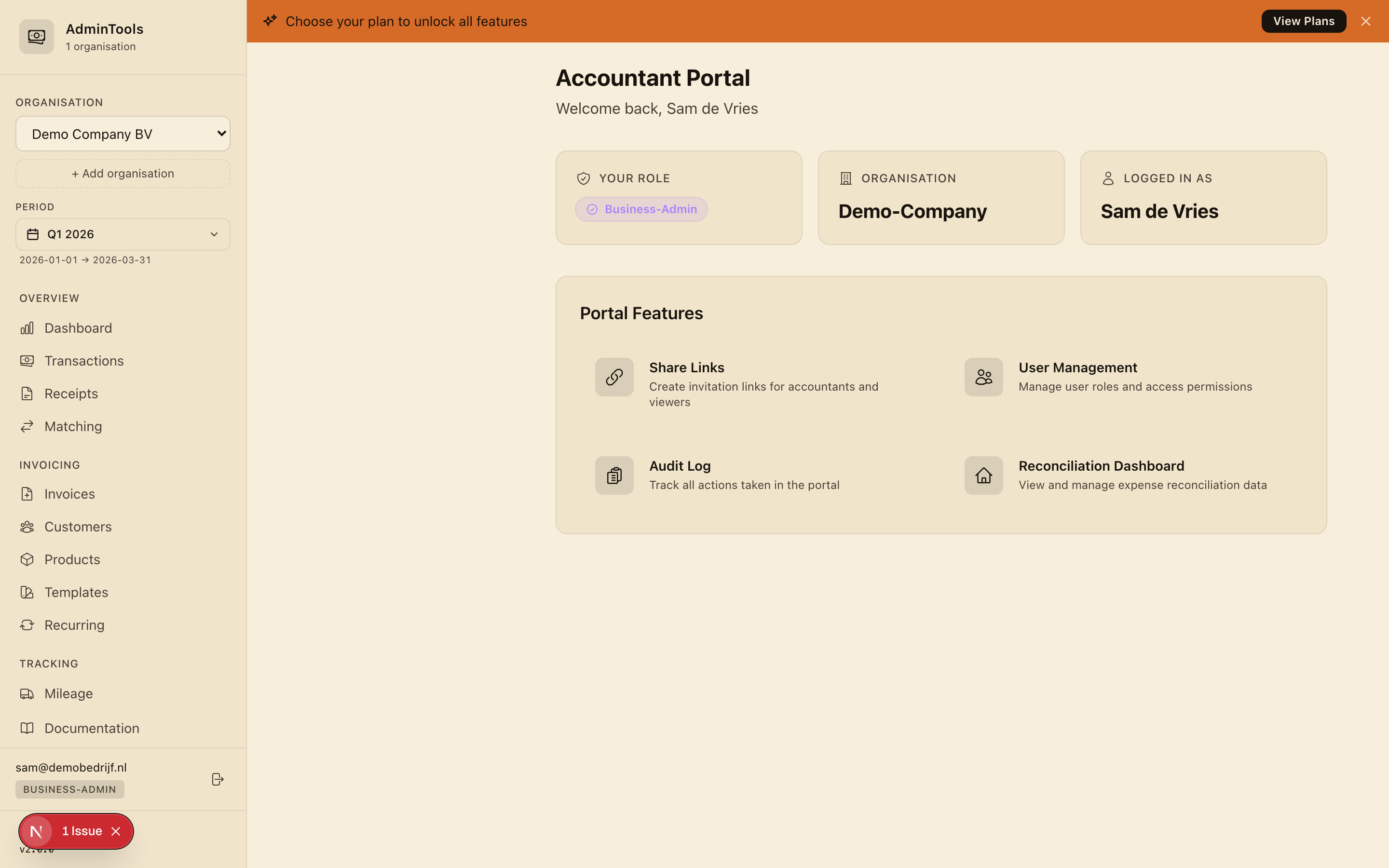
Giving your accountant the right access
Your accountant works in a focused area of the app that shows exactly what they need and nothing more. They sign in, land on your business, and see the reconciliation data, transactions, invoices, matching, mileage, discrepancies and reimbursements, all scoped to your business alone.
From there your accountant can:
- Review every transaction and receipt for the quarter.
- Approve or reject match suggestions.
- Download the accountant-ready spreadsheet for the quarter.
What they cannot do is just as important. They cannot change your settings, invite other people, or see any administrative screens. Their view is limited to your business, so there is no risk of them seeing anyone else's data. To set this up, simply invite them with the Accountant access level.
Managing people: change access or remove someone
As your team changes, you can adjust access at any time from the people screen, where everyone is grouped by their access level so the picture stays clear.
For each person you can:
- Change their access level if their role in the business changes, for example promoting a submitter to approver.
- Remove them when they no longer need access. You will be asked to confirm before anyone is removed.
One safeguard is built in: you cannot remove or downgrade yourself. That stops a business from ever being accidentally locked out of its own account.
Revoking an invite link
An invite link you created but no longer want to honour can be cancelled before anyone uses it. On the Share screen, links are shown in three groups so you always know where each one stands:
- Active links are still valid and waiting to be used.
- Used links have already been accepted by someone.
- Expired links passed their date without being used.
To cancel an active link, simply revoke it. Once revoked, it stops working immediately, so if you sent a link to the wrong person, or changed your mind, you can shut it down at once.
The activity log: see what collaborators did
Every meaningful action in the shared area is recorded for you, so you always have a clear trail of who did what and when. The log captures things like:
- People signing in.
- Match suggestions being approved or rejected.
- Spreadsheets being exported.
- Invite links being created, revoked or accepted.
- Someone's access level being changed, or a person being removed.
Each entry notes who did it and when, and you can filter the log by person, by action, or by date range to find exactly what you are looking for. It is a quiet but reassuring feature: when your accountant exports the quarter or approves a batch of matches, you can confirm it at a glance.
Working across more than one business
If you run, or help run, more than one business, you don't need a separate account for each. A single sign-in can hold access to several businesses, and you can be an owner of one while being only an accountant or read-only on another.
A business switcher in the sidebar lets you move between them. When you switch, everything, your data, your access level, and what you are allowed to do, updates to match the business you have moved into. This is exactly how an accountant works across several clients from one login, seeing each client's figures only while they are inside that client's business.
Where to go next
- To hand the finished quarter to your accountant, see VAT/BTW and your quarterly export.
- To connect your bookkeeping software so figures flow through automatically, see Settings and preferences.