Matching and discrepancies
Once your bank transactions and your receipts are both in the app, matching is where they come together. The app pairs each payment that left your account with the receipt or purchase invoice it belongs to, so by the end of the quarter every euro is accounted for. This page walks you through running matching, reviewing the suggestions, approving them, and sorting out anything that doesn't line up.
What matching does
Matching cross-references every payment that went out of your bank account against the receipts and purchase invoices you've added for the same quarter. For each transaction it looks for the invoice that best fits, weighing things like:
- whether the amounts are the same,
- whether the supplier's bank details (IBAN) match,
- whether the invoice number appears in the bank description,
- how closely the supplier name matches, and
- how close the dates are.
It then suggests the best pairing it can find and tells you how confident it is. Nothing is locked in automatically: you stay in control and confirm each match (or let the app confirm the obvious ones in bulk). Whatever it can't pair up gets flagged as a discrepancy for you to look at.
Before you run matching, make sure both sides are in for the quarter: your bank transactions are imported, and your receipts and purchase invoices are uploaded or synced.
Run matching and review the suggestions
- Open the Matching page.
- Check that the right business and quarter are selected at the top.
- Click Run Matching.
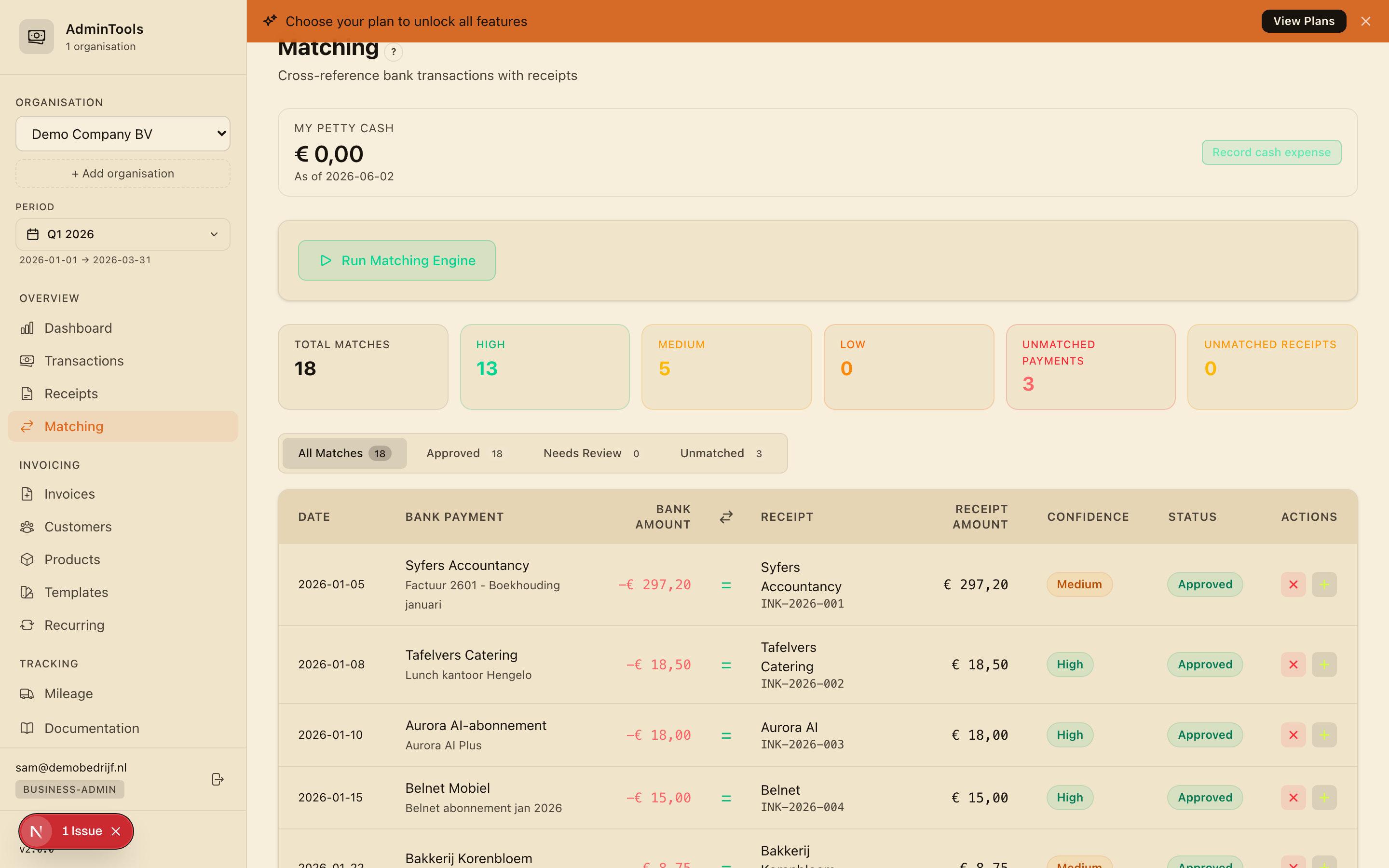
The app works through your transactions and invoices and, when it's done, shows a short summary: how many matches it found, how many discrepancies it spotted, and how many items it looked at in total.
At the top of the page you'll see summary cards that break the result down at a glance: total matches, how many are High, Medium and Low confidence, plus any unmatched payments (money that left your account with no invoice yet) and unmatched invoices (bills with no payment yet).
Confidence levels
Every suggested match comes with a confidence badge so you know how much to trust it:
- High (green) — The app is very sure. This is when strong signals line up, for example the amount and the supplier's bank details both match, or the amount and the invoice number both match.
- Medium (amber) — A good candidate, but worth a quick look. For example the amount matches and the supplier name is similar, or the amount and date are close.
- Low (orange) — Only one strong signal lined up. Check these carefully before approving.
Tip: Use the filter tabs to focus your time. Needs Review gathers the Medium and Low matches that want a human eye, while Approved shows what you've already confirmed.
For each suggested pair you can see the transaction date, the bank counterparty, the amount that left your account, the invoice it's paired with, and a small indicator showing whether the two amounts are an exact match or differ slightly.
Approve a match, or mark it paid privately
When a suggestion is correct, click the green checkmark to approve it. That confirms the payment and the invoice belong together. If the app paired the wrong two items, click the red cross to reject it.
Sometimes a bill was paid from a personal account rather than the business account, so there's a genuine invoice but no matching business payment. For those, use Paid Privately. This records the invoice as paid from a personal account and creates a reimbursement record, so the money the company owes you back is tracked automatically. (You'll find the running total on the Reimbursements page.)
Bulk-approve the easy ones
You don't need to click through every High-confidence match by hand. When there are High-confidence matches waiting, a Bulk Approve button appears, showing how many it will confirm. Click it once to approve them all for the current business and quarter.
A good rhythm is: bulk-approve the High-confidence matches first to clear the obvious ones, then work through Needs Review for the Medium and Low matches that need your judgement.
It gets smarter the more you confirm
Matching learns from you. Every time you approve a match, the app remembers that this supplier on your bank statement goes with this creditor on your invoices. The next quarter, a payment from the same supplier is recognised straight away and matched with higher confidence — even if the bank description is written a little differently.
The same applies to expense categories: when you file a supplier under a category (say a lunchroom under Food), the app remembers, and similar transactions are sorted for you next time. Over a few quarters this means less and less manual work: the routine suppliers sort themselves, and you only spend time on the genuine exceptions.
This all happens quietly in the background using your own confirmations. There's nothing to switch on.
Discrepancies: what doesn't line up
Anything matching can't cleanly pair gets flagged as a discrepancy so it doesn't slip through. Each one is labelled in plain English:
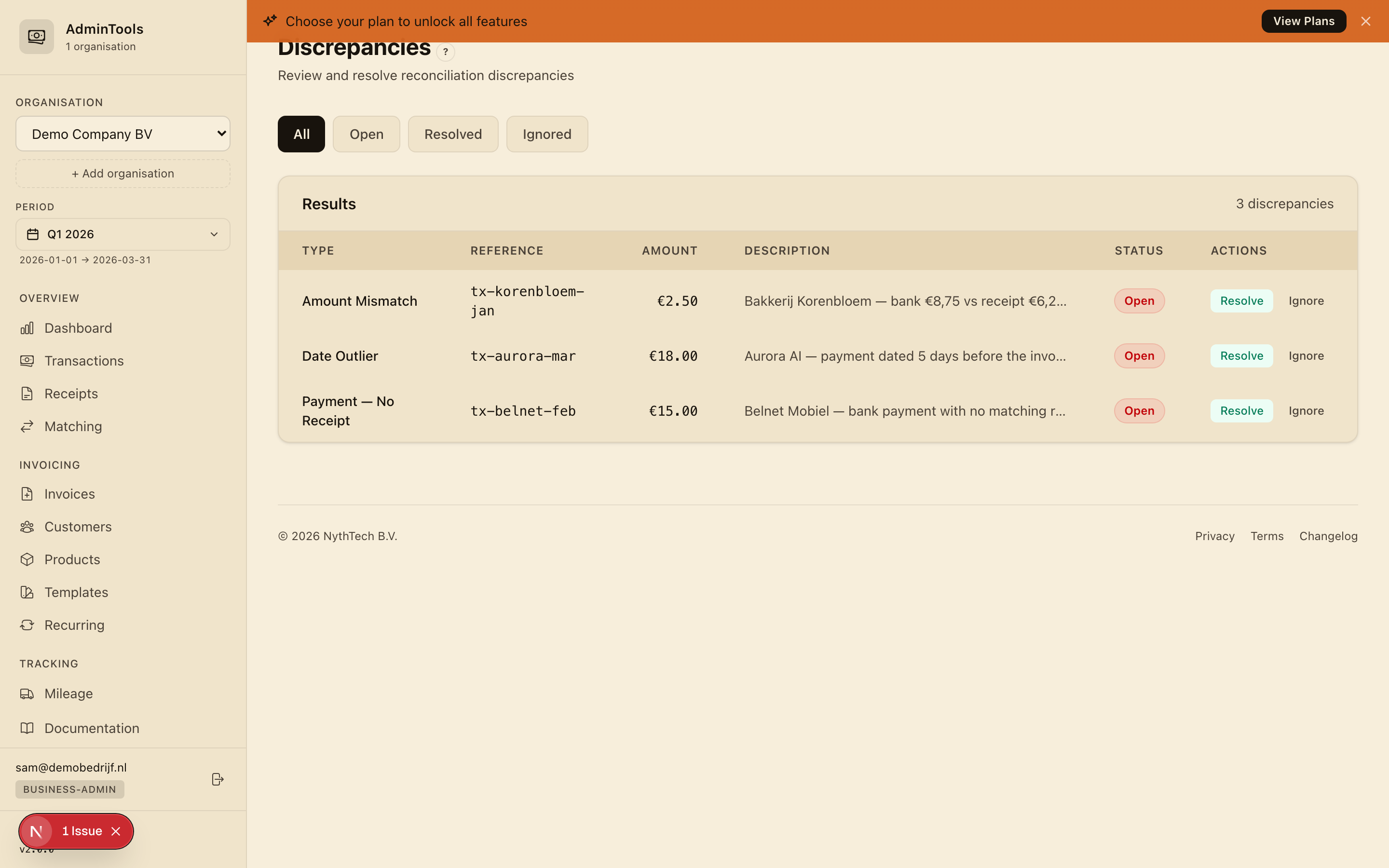
- Invoice with no payment — There's a bill on file, but no bank payment matches it. Was it paid from a personal account, or is it still outstanding?
- Payment with no invoice — Money left your account, but there's no invoice for it. Upload the missing receipt, or note that it doesn't need one (for example, a transfer between your own accounts).
- Amount mismatch — A payment and an invoice were paired, but the amounts differ. Check for a part-payment, a rounding difference, or a BTW (VAT) discrepancy.
- Duplicate payment — More than one payment matched the same invoice. Was the bill accidentally paid twice, or is one of them a refund?
- Date far apart — The payment and the invoice are more than two months apart. Usually a late payment, but worth confirming it's the right pairing.
Resolving a discrepancy
- Open the Discrepancies view and pick the item you want to deal with.
- Read the plain-English description to see what the app noticed.
- Take the matching action: upload a missing receipt, mark an invoice as Paid Privately, or note that a transaction doesn't need an invoice.
- Add a short note if it helps explain the resolution, then mark it resolved.
Clearing discrepancies as you go keeps the quarter tidy. When you generate your quarterly export for your accountant, any discrepancies you've resolved (and any still open) are carried into the spreadsheet with your notes, so there's a clear trail of every decision. The goal is a quarter where every payment is matched and every exception has an explanation — which is exactly what makes the accountant hand-off painless.