Sending invoices to your customers
Alongside tracking the expenses you pay, the app helps you bill the people who pay you. You can keep a tidy list of customers and the products or services you sell, raise a clean BTW-correct invoice in a couple of minutes, put your own logo and colours on it, and set up recurring invoices for the clients you bill every month. Once an invoice is sent, it flows straight back into your reconciliation so you can see what's been paid.
This page walks through the sales side of invoicing. For the receipts and supplier invoices you receive, see Receipts and purchase invoices.
Your customer list
Everyone you invoice lives in your customer list. Each customer holds the details that get printed on their invoices, so you only enter them once.
A customer record typically includes:
- The company or person's name
- An email address (where invoices are sent)
- Their outstanding total, so you can see at a glance who still owes you money
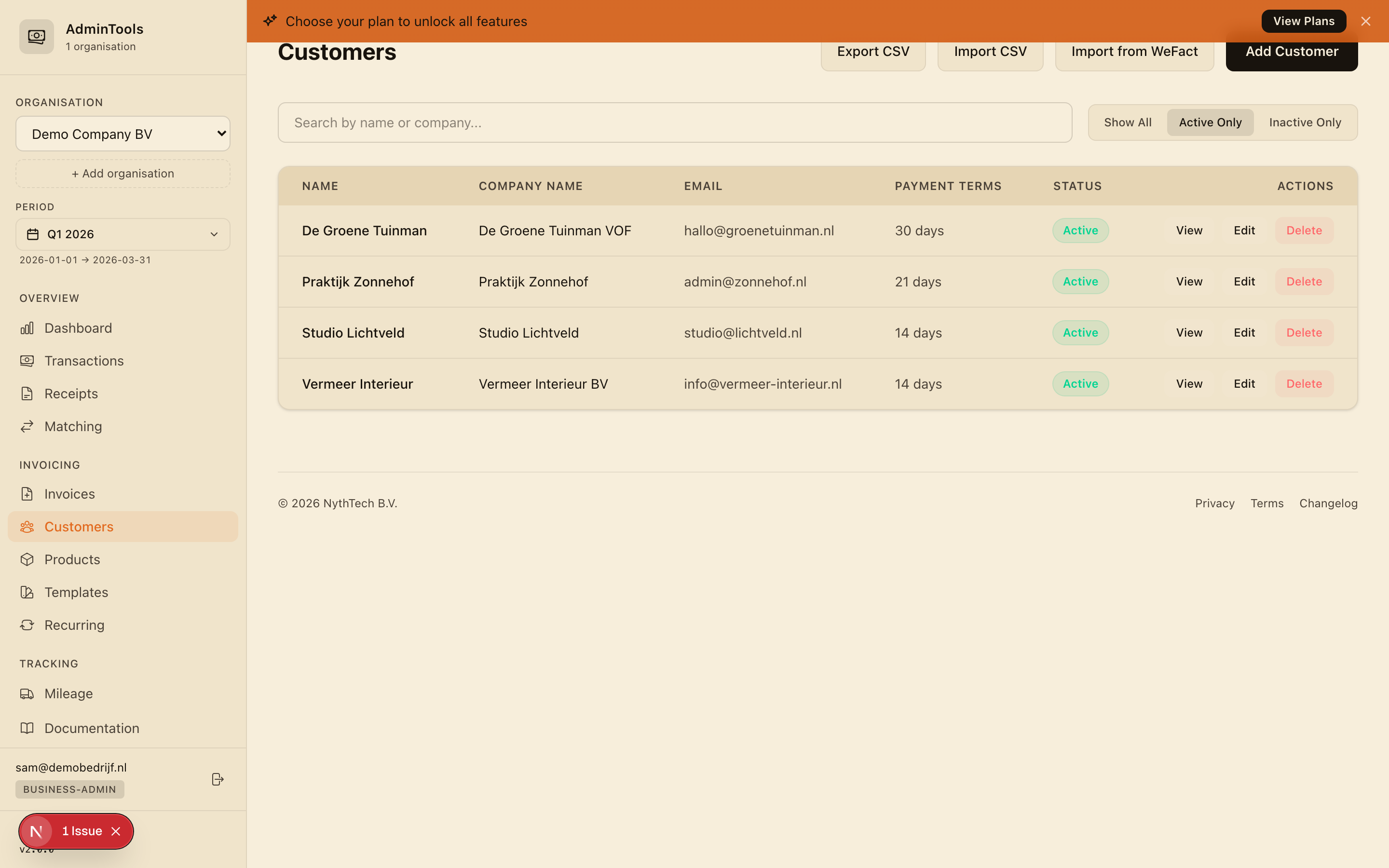
To add a customer, open the Customers screen and create a new entry with their name and email. From then on you can pick them from a dropdown whenever you raise an invoice, and the app keeps a running total of what each customer owes.
Tip: Add the customer's email carefully. It's the address your invoice gets delivered to, and it's reused on every future invoice for that customer.
Your products and services
If you sell the same things over and over, save them as reusable products so you don't retype prices and BTW rates each time.
Each product carries:
- A name or description
- A unit price
- Its BTW rate (21% standard, 9% reduced, or 0% exempt)
When you build an invoice, you add a product as a line item and the app fills in the price and the correct BTW for you. You can still adjust the quantity, tweak the price, or type a one-off line that isn't a saved product.
Creating and sending an invoice
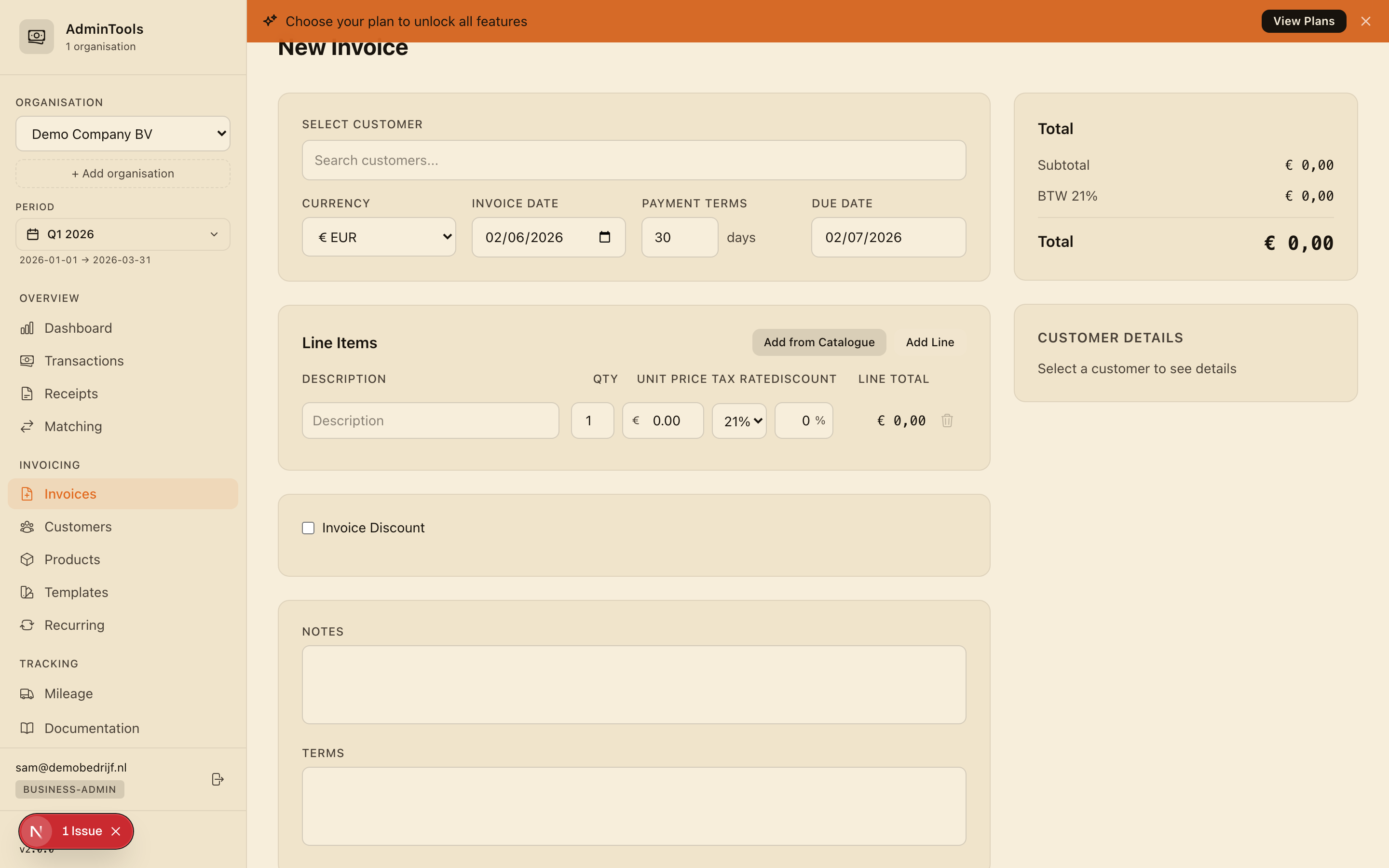
Raising an invoice is a short, guided form.
- Open New invoice.
- Choose the customer from your customer list.
- Add one or more line items — pick a saved product, or type a description, quantity and price by hand.
- Set the BTW rate per line (21%, 9% or 0%). The app totals the amount excluding BTW, the BTW itself, and the grand total including BTW as you go.
- Check the invoice date and any reference or notes.
- Send the invoice to your customer.
The totals are always shown three ways — excluding BTW, the BTW amount, and the total including BTW — so the figures match what your accountant expects on a Dutch invoice.
Tip: Double-check the BTW rate on each line before sending. A delivery of physical goods, a service, and an exempt item can each sit at a different rate on the same invoice.
Invoice templates and your branding
Your invoices can carry your own look rather than a generic template. Through the branding settings you can apply:
- Your logo
- Your brand colours
- Your own typography and styling
Set this once and every invoice you send picks it up automatically, so what lands in your customer's inbox looks like it came from your business.
Recurring invoices for retainers and subscriptions
For clients you bill on a fixed cycle — a monthly retainer, a support plan, a subscription — you don't need to recreate the same invoice each period. Set the invoice up once as a recurring invoice, and it's reissued on schedule with the same customer, line items and amounts. This keeps your billing consistent and means a missed month is one less thing to worry about.
Where sent invoices appear in reconciliation
Sales invoices don't live in isolation. The app keeps a Sales Invoices tab next to your receipts so you always have your revenue in the same place as your expenses.
On that tab each sent invoice shows its date, number, customer, amount excluding BTW, the BTW, the total, and its payment status — so you can tell at a glance which invoices are still waiting, partly paid, or paid.
Because the money your customers pay you lands in your bank account, those incoming payments show up in your transactions and feed your quarterly figures. That keeps both sides of your books — what you pay out and what you take in — in one quarter view, ready for the accountant-ready export at quarter end.
Note: The Sales Invoices tab is there for reference and revenue tracking. It sits right beside the receipts you reconcile, so a single quarter view covers both your costs and your income.
Where to go next
- Receipts and purchase invoices — get the expenses you pay into the app.
- VAT/BTW and your quarterly export — review BTW for the quarter and hand a clean spreadsheet to your accountant.
- Settings and preferences — set your logo, colours and country fiscal defaults.