Receipts and purchase invoices
Every expense you pay has a receipt or a purchase invoice behind it. This page is where those documents live, and where the app does the tedious part for you: reading each one and pulling out the supplier, the total, and the BTW so you do not have to type them in by hand.
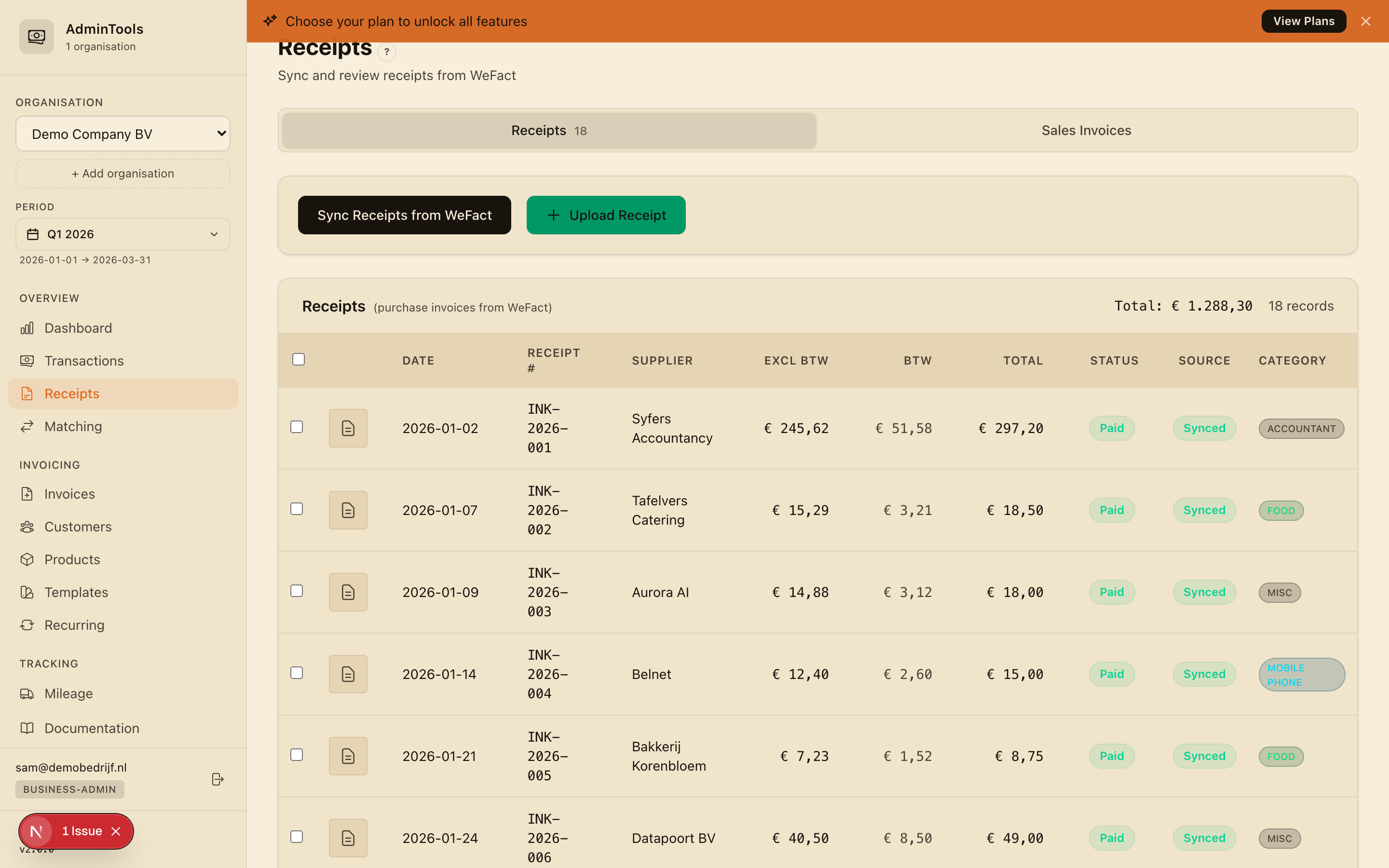
Receipts and sales invoices: the two tabs
The page has two tabs, and it helps to keep them straight.
- Receipts (also called purchase invoices, or inkoopfacturen) are the expenses you pay to your suppliers: the petrol receipt, the software subscription, the lunch with a client. These are the documents that get matched against the money leaving your bank account.
- Sales invoices (facturen) are the invoices you send to your own customers. They appear here for reference and revenue tracking, and they are read-only in this view. To create or edit one, head to the invoicing section.
For day-to-day expense work, you will spend almost all your time on the Receipts tab.
Upload a receipt
The quickest way to add an expense is to drop the document straight onto the page.
- Open the Receipts tab and select the quarter you are working on.
- Click Upload Receipt to open the upload window.
- Drag a photo or PDF onto it, or click to browse and choose a file. Photos and PDFs are both fine, including pictures taken on your phone.
- Wait a moment while the app reads the document.
- Check the details it found, then confirm to save.
That is the whole flow. You do not need to fill in a form first, the document is the form.
Tip: Snapping receipts on the move is even easier in the iPhone app. Take a photo at the till and it uploads and reads in the background, so the expense is waiting for you the next time you open the app.
The app reads the receipt for you
This is the part that saves you the most time. As soon as you upload a document, the app reads it and pulls out the fields you would otherwise type by hand:
- Supplier — who you paid
- Total — the amount including BTW
- BTW — the VAT portion, so your quarterly return is already broken out
- Date — the date on the receipt
- Reference — the invoice or receipt number
It understands both Dutch and English receipts, handles comma and point decimals, and recognises Dutch month names and date formats. It also picks up the currency, defaulting to euros.
Check and correct before you save
The app is good, but you are the final word. After it reads a document, it shows you everything it found so you can give it a quick once-over.
The original document sits on one side and the read-back fields on the other. If anything looks off, click the field and fix it right there. A blurry photo or an unusual layout might need a small correction; a clean receipt usually needs none at all. When the details look right, confirm to save.
You can reopen any saved receipt the same way: click its row to bring up this window again. The arrows let you step from one receipt to the next without closing it, which is handy when you are reviewing a whole stack in one sitting.
It learns from your corrections
You do not have to make the same fix twice. When you correct a field the app got wrong, it remembers. The next time a similar document from that supplier comes through — same layout, same wording — it applies what it learned and gets it right the first time.
In practice this means your regular suppliers get easier and easier. The receipts you handle every month stop needing any correction at all, and the app quietly does more of the work as it goes.
Sync purchase invoices from WeFact
If your purchase invoices already live in WeFact, you do not need to upload them again, you can pull them straight in.
- On the Receipts tab, choose the quarter you want.
- Click Sync from WeFact.
- The app pulls every purchase invoice dated in that quarter and adds it to the list.
- When it finishes, it tells you how many invoices it brought in.
Synced invoices behave just like uploaded ones from here on: they show up in the list and are ready for matching. Concept and cancelled invoices are left out of matching, since they are not real expenses you have paid.
What each status badge means
Two badges on each row tell you, at a glance, where a receipt stands.
The payment status shows where the invoice is in its life:
- Paid (green) — fully settled
- Partly paid (amber) — some still outstanding
- Sent, Waiting or Concept (blue) — not yet paid
- Cancelled (grey) — no longer active
The source badge tells you where the record lives:
- Local (amber) — you uploaded it here, and it is not in WeFact
- Synced (green) — it exists both here and in WeFact
- WeFact (blue) — it came from WeFact and lives there
The header above the table adds up the total for everything shown, along with the number of records, so you always have a running figure for the quarter.
Opening the original document
You can always get back to the source. Click a receipt row to open the detail window and see the original photo or PDF alongside its details.
For invoices that came from WeFact, each row also carries an external link. Click it to jump straight to that invoice in your WeFact admin, which is the quick way to cross-check the reconciliation against the original record.
Where to go next
Once your receipts and purchase invoices are in for the quarter, the app can line them up against your bank transactions. See Matching and discrepancies to run matching, approve the suggestions, and sort out anything that does not line up.