Settings and preferences
Settings is where you tell the app how your business works: what language you read in, which country's tax rules apply, and how it connects to your accounting software. Everything here is done through simple screens. There are no files to edit and nothing to configure by hand.
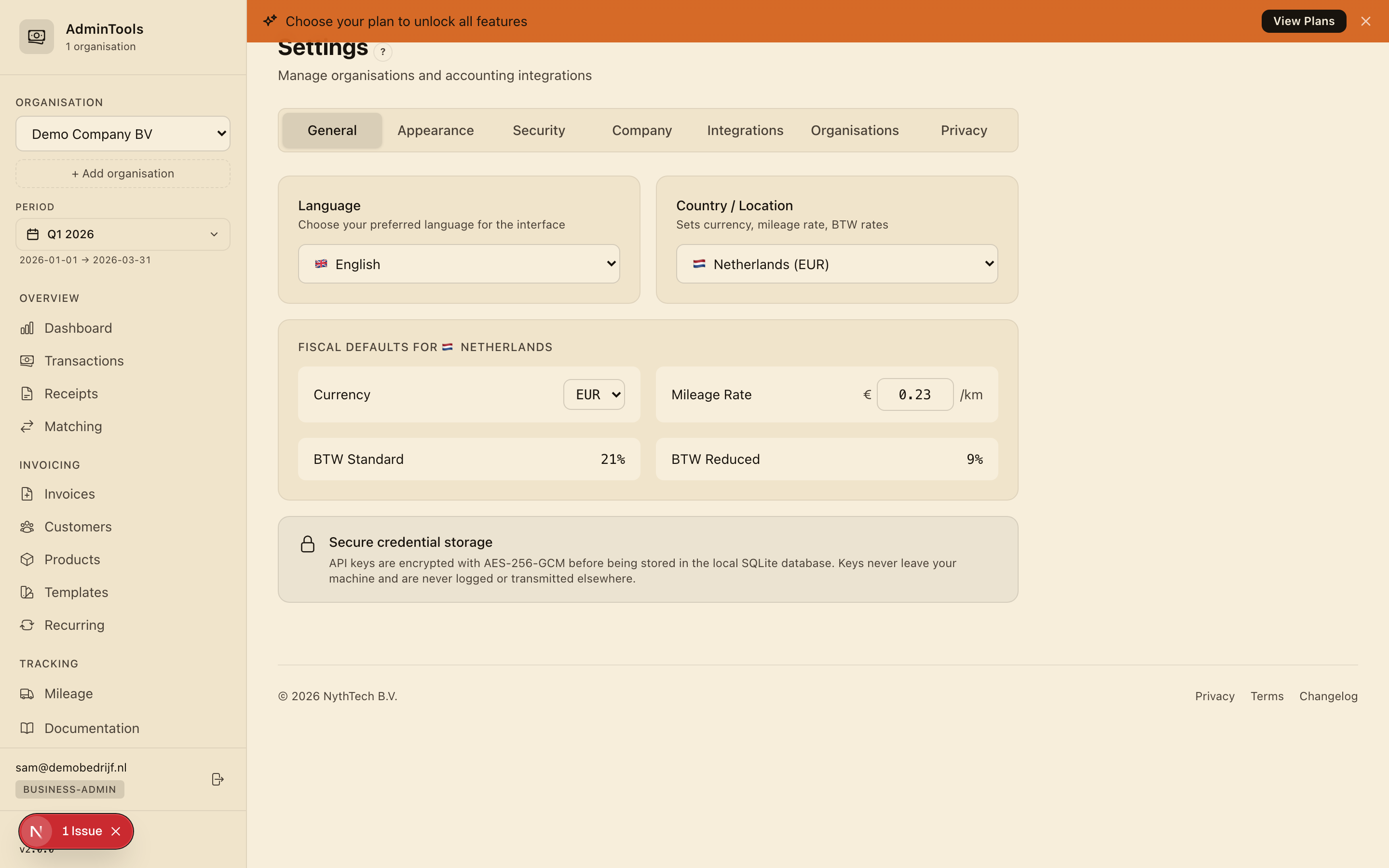
Language and your business country
Two choices at the top of Settings shape almost everything else: the language you work in, and the country your business is based in.
Choosing your language
The app is available in five languages:
- English
- Nederlands
- Deutsch
- Français
- Español
Pick your language from the dropdown and it applies straight away, right across the app, no need to reload or sign in again. Your choice is remembered, so the app stays in your language the next time you sign in.
Setting your business country
Just below, choose the country your business is based in. This single setting does a lot of quiet work: it tells the app which currency to use, which mileage rate is tax-free, and which VAT rates apply, all named the way they're known locally (BTW in the Netherlands, VAT in the UK, MwSt in Germany, TVA in France, IVA in Spain).
Supported countries include the Netherlands, the United Kingdom, Germany, Belgium, France, Spain, and more. When you change the country, all the related defaults update automatically and are saved for you.
Country defaults: currency, VAT/BTW, and mileage
Once you've picked a country, a read-only card shows you exactly what the app will use for your calculations:
- Currency and its symbol
- Mileage rate per kilometre
- Standard VAT/BTW rate
- Reduced VAT/BTW rate
For a Dutch business, that means the euro, a tax-free mileage rate of €0.23/km (the Dutch maximum for 2024, 2025, and 2026), a standard BTW rate of 21%, and a reduced rate of 9%.
Here's how the defaults look for a few common countries:
| Country | Currency | Mileage rate | VAT standard | VAT reduced | Date format |
|---|---|---|---|---|---|
| Netherlands | EUR | €0.23/km | 21% | 9% | dd-MM-yyyy |
| United Kingdom | GBP | £0.45/km | 20% | 5% | dd/MM/yyyy |
| Germany | EUR | €0.30/km | 19% | 7% | dd.MM.yyyy |
These values flow through the whole app: your mileage is priced with the right rate, amounts are shown in the right currency, BTW is calculated correctly, and your quarterly export comes out in the right format.
Tip: If your business needs slightly different figures, you can override the currency, mileage rate, VAT rates, and date format for that business. The country defaults are a sensible starting point, not a cage.
Connecting WeFact
If you keep your purchase invoices in WeFact, you can link it so the app pulls them in for you each quarter. The easiest way is the guided wizard.
Using the guided wizard
The wizard walks you through the whole connection in six short steps:
- A quick explanation of what WeFact is and how it works with the app.
- Creating a WeFact account, if you don't already have one.
- Finding your API key inside your WeFact admin area.
- Pasting that key into the app.
- Adding the app's address to your WeFact whitelist (WeFact asks you to approve which addresses may connect).
- Testing the connection so you know it works before you finish.
To start, open Settings, go to your business's card, and launch the WeFact wizard.
The whitelist step, made easy
WeFact only accepts connections from addresses you've approved. To make this painless, Settings shows a small banner that detects your current address, displays it clearly, and gives you a one-click Copy button so you can paste it straight into WeFact's whitelist.
Checking and changing the connection later
Each WeFact-linked business has its own card in Settings showing whether it's connected:
- Connected (green) — your key is in place and working.
- Not configured (grey) — no key has been added yet.
The API address is pre-filled with the standard WeFact endpoint, so you almost never need to touch it. Once you've saved your key it's hidden for safety and shown only as dots. If you ever need to swap it, use Remove Key and add a new one. Whenever a key is in place, a Test Connection button lets you confirm everything is still working, with a clear green or red result.
Exact Online (coming soon)
If you use Exact Online, you can already select it as your accounting software, and you'll see a "Coming Soon" card describing what's on the way. Planned features include secure sign-in to your Exact account, automatic invoice syncing, chart-of-accounts mapping, and help preparing your VAT return. Until it's ready, businesses on Exact Online can still upload bank statements and receipts and use everything else in the app.
Auto-categorisation rules
To save you sorting every expense by hand, the app can categorise purchases automatically based on the supplier's name. A rule simply links a name pattern to a category, for example "Lunchroom" to Food, or a bookkeeper's name to Accountant. From then on, matching receipts and transactions are filed into the right category for you, ready for your quarterly export.
You'll find your current rules under the Data tab in Settings, alongside a note of which import formats are supported (ING CSV, MT940, and the WeFact connection, with more on the way).
Your data is kept private and secure
Your business details stay yours. API keys and other sensitive credentials are stored securely and encrypted, are never shown again once saved, and are never written into logs or shared with anyone else. Each business you manage is kept fully separate, so its transactions, invoices, connections, and rules never mix with another's.