Mileage and reimbursements
Two kinds of out-of-pocket spending never show up on your business bank statement: the kilometres you drive for work, and the expenses you pay from a personal card or account. This page shows you how to log both, so the money you're owed is tracked all year and lands neatly in your quarterly export for the accountant.
Logging mileage at €0.23/km
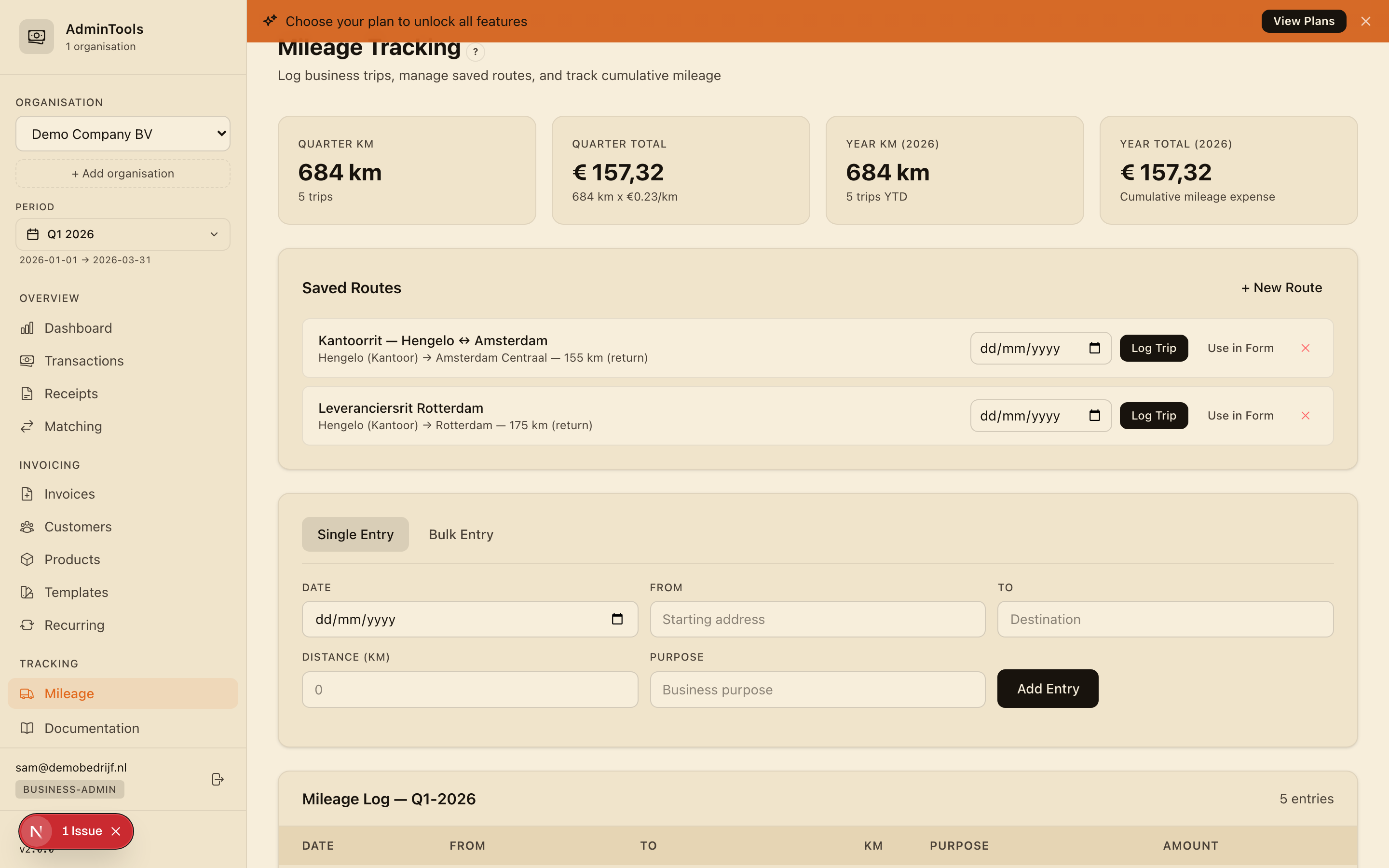
Open the Mileage page and pick the business and quarter you're working in at the top. Every trip you log is valued at €0.23 per kilometre — the Dutch tax-free maximum (belastingvrije kilometervergoeding), which applies for 2024, 2025 and 2026. You don't have to do any maths; the app multiplies your distance by the rate for you.
To log a single trip:
- Open the Single Entry tab.
- Fill in the Date, From, To, Distance (km) and Purpose (for example "Client meeting" or "Office day").
- As you type the distance, a live estimate appears below the form — for example Estimated: €57.04 (248 km × €0.23/km) — so you can sanity-check the trip before saving.
- Click Add Entry.
All fields are required, so every trip carries the date, route and business reason your accountant will want to see.
At the top of the page, four cards keep you oriented at a glance:
- Quarter KM — total kilometres this quarter, with the trip count.
- Quarter Total — the euro value for the quarter.
- Year KM — your running total for the whole calendar year.
- Year Total — the euro value year-to-date.
The year totals carry forward across quarters, so you always have a cumulative picture of your business driving.
Saved routes and one-click quick log
If you drive the same journey often, save it once and stop re-typing addresses.
- In the Saved Routes section, click New Route.
- Give it a Route Name (for example "Home to Amsterdam office"), then fill in From, To and Distance (km).
- If the distance you entered already covers there-and-back, tick Return trip.
- Click Save.
Each saved route then has its own date picker and a Log Trip button. Pick a date, click once, and the trip is logged — no form to open. Prefer to tweak the details first? Click Use in Form to drop the route's from, to, distance and purpose into the single-entry form, adjust anything you like, and submit.
Deleting a route (the cross button) only removes the shortcut. Trips you already logged from it stay exactly where they are.
Tip: Save your regular commute and your most common client runs first. After that, most weeks are a few one-click logs rather than a data-entry chore.
Bulk-logging the same route across several dates
For a regular commute, log a whole stretch of dates in one go:
- Open the Bulk Entry tab.
- Choose a saved route from the dropdown (it shows the route name and distance).
- Optionally override the purpose.
- Add dates one at a time with the date picker. Each one appears as a removable tag, and they sort themselves into order.
- A preview bar tallies the total number of trips, total kilometres and total euros you're about to create.
- Click Add All Entries.
All of those trips are saved together. (If you haven't created any saved routes yet, this tab will simply prompt you to make one first.)
How mileage feeds your quarterly total and reimbursements
Every trip you log appears in the quarterly log table for the selected quarter — date, route, kilometres, purpose and euro amount, with a totals row at the bottom showing your total kilometres, the €0.23/km rate, and the total amount.
That quarter total isn't just for your own records. It flows straight into your quarterly export as part of the Amount Due to Employee as Expenses figure, on its own dedicated Mileage sheet — complete with driver and vehicle details, the rate, and a full trip log. Combined with any personal-account expenses (below), it gives your accountant a single, clear number for what the business needs to pay back.
Marking an expense as paid from a personal account
Some expenses get paid from a personal card or account rather than the business account. Because they never touch the business bank statement, the app treats them as expenses the company owes you back — and the Reimbursements page keeps track of them.
There are two ways to record one:
From the Reimbursements page
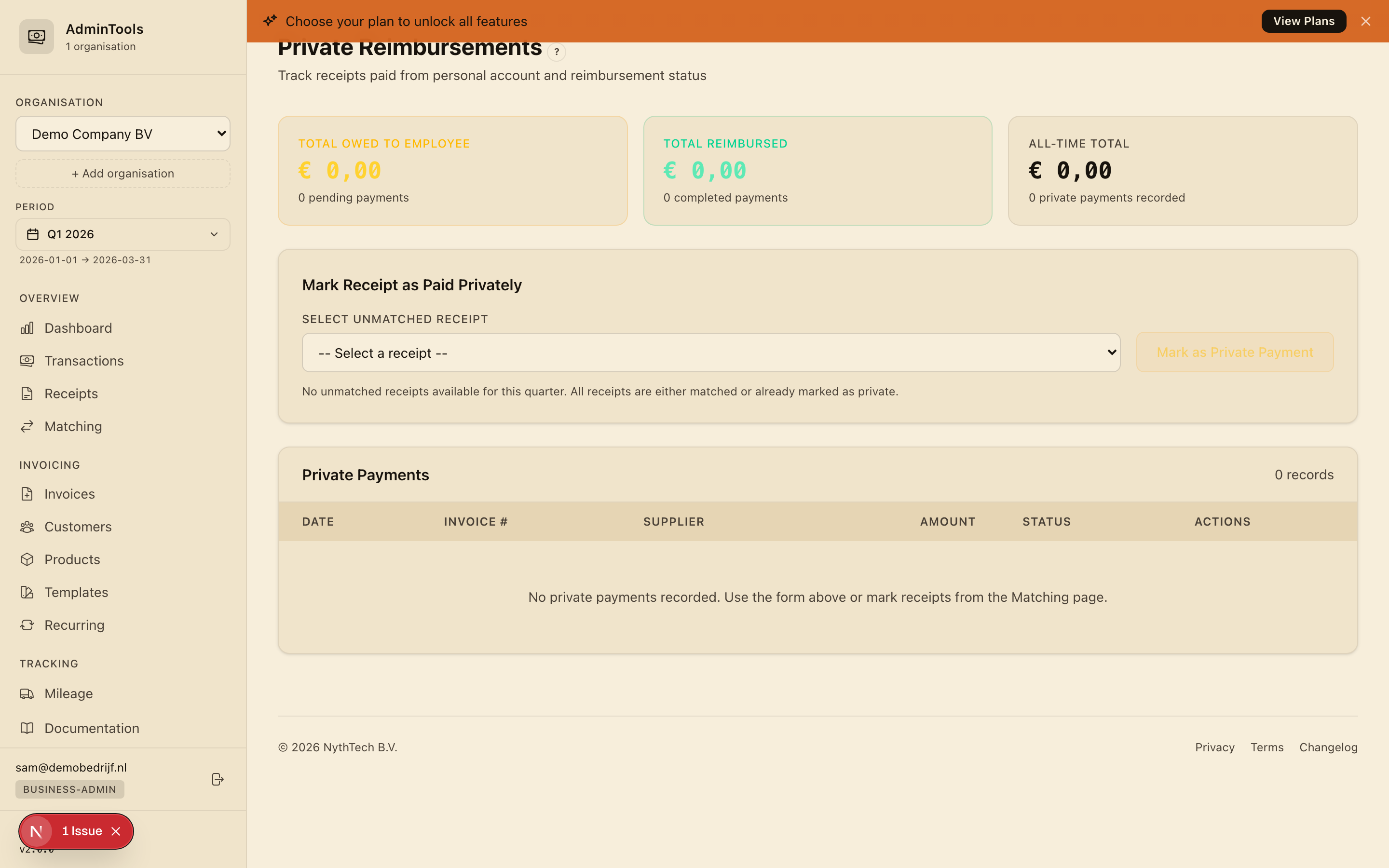
- Open the Select Invoice dropdown — it lists every unmatched purchase invoice for the current business and quarter, showing the invoice number, supplier, amount and date.
- Pick the one you paid personally.
- Click Mark as Paid from Private Account.
The expense is recorded as a personal payment with a Pending reimbursement status. (If the dropdown is empty, every invoice is either already matched to a bank payment or already marked as personal.)
From the Matching page
While you're reviewing matches, any unmatched invoice in the right-hand panel has a Paid Privately button. Click it and the reimbursement record is created for you, then you're taken to the Reimbursements page to see it.
Your running balance: what the company owes you
Three cards at the top of the Reimbursements page give you the full picture, each with a count of the payments behind it:
- Total Owed (amber) — the sum of every pending personal payment. This is what the business currently owes you.
- Total Reimbursed (green) — everything that's been paid back and settled.
- All-Time Total — the complete history of personal-account expenses, pending and settled together.
Below the cards, the private payments table lists each expense with its date, invoice number, supplier, amount and status. A Running Balance footer at the bottom always shows the total still owed — and it updates the instant you settle a payment.
Marking a reimbursement as settled
When the business actually pays you back, update the record so your balance stays honest:
- A Pending payment shows a green Mark Reimbursed button. Click it once the money has been transferred to you.
- A Reimbursed payment shows an amber Undo button, in case you marked something by mistake and need to set it back to pending.
The change takes effect immediately, and the running balance and summary cards adjust to match.
At quarter end, every personal-account expense flows into your export: each one appears on the main Receipts sheet flagged as a Personal account payment, there's a dedicated Private Reimbursements sheet listing them all with their status and a running balance, and the Summary sheet rolls up the total owed alongside a business-versus-personal split. Together with your mileage, that gives your accountant one clean figure for everything the business needs to reimburse you for the quarter.