VAT/BTW and your quarterly export
Every quarter, your accountant needs a clean picture of what you spent, what BTW you paid, how everything reconciles against your bank, and what's still owed back to you. This page walks you through the BTW view and the one-click quarterly export that bundles it all into a single accountant-ready spreadsheet.
Dutch BTW at a glance
Everything in the app is organised by fiscal quarter, so your numbers always line up with your BTW return:
- Q1 — January to March
- Q2 — April to June
- Q3 — July to September
- Q4 — October to December
Dutch BTW comes in three rates, and the app tracks each one separately:
- 21% — the standard rate, used for most goods and services
- 9% — the reduced rate (food, books, and similar)
- 0% — exempt or zero-rated items
As receipts and purchase invoices come in, the app reads the BTW amount from each one and slots it into the right rate. The BTW overview gives you a quarter-at-a-glance breakdown across all three rates, so you can sanity-check the totals before they reach your accountant.
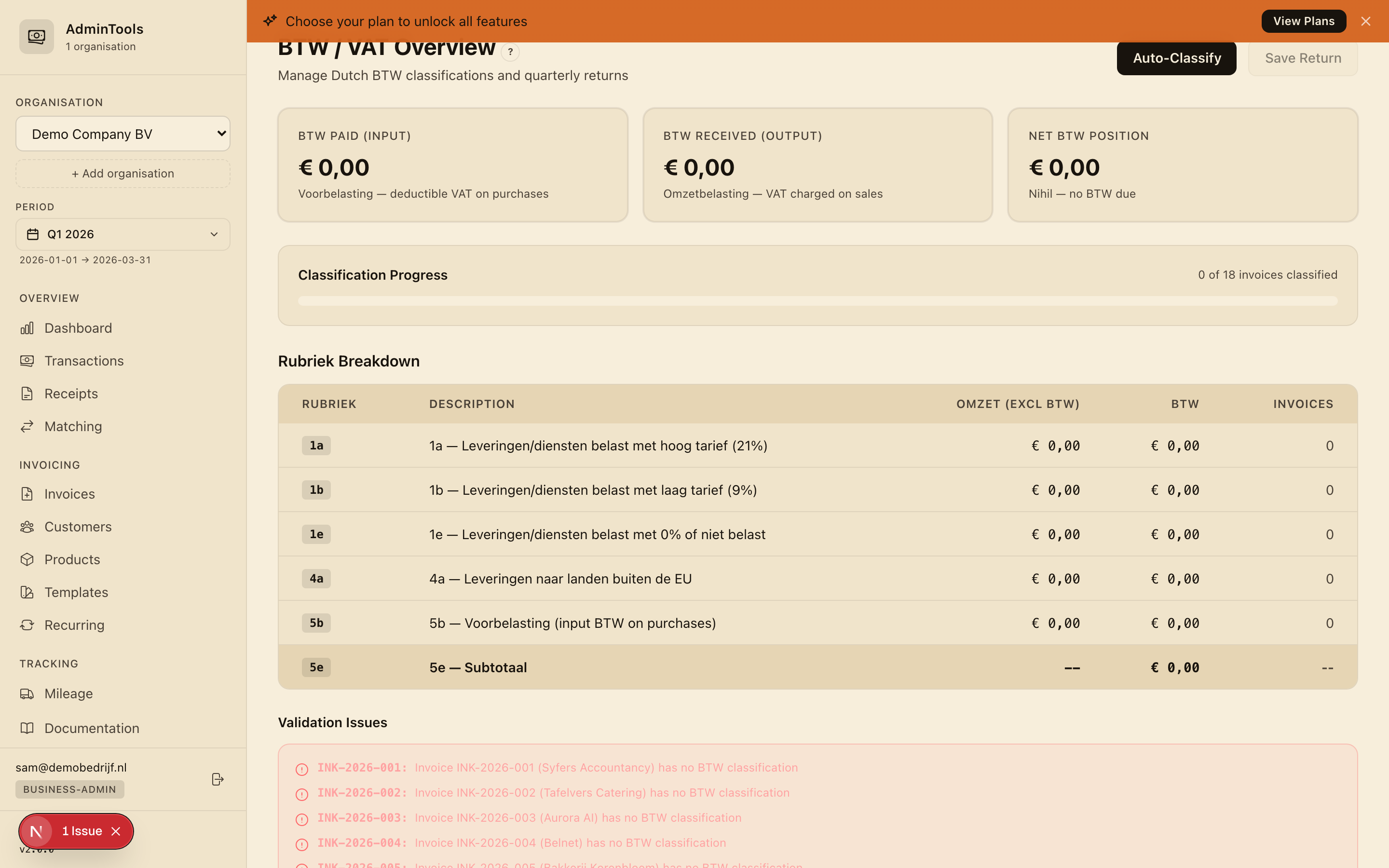
Tip: Pick your business and quarter at the top of the app first. Every figure — BTW, expenses, mileage, reconciliation — follows that selection, so you're always looking at one clean quarter at a time.
What the quarterly export is
The quarterly export is a single spreadsheet (an .xlsx workbook) that gathers all of your reconciliation data for one business and one quarter into one file. It's built to hand straight to your accountant — consistent euro formatting throughout, clear category breakdowns, and a full audit trail across several tidy sheets.
You'll typically run the export once the quarter is closed and you've reviewed your matches and discrepancies, ready in time for your BTW return.
Downloading your quarter in one click
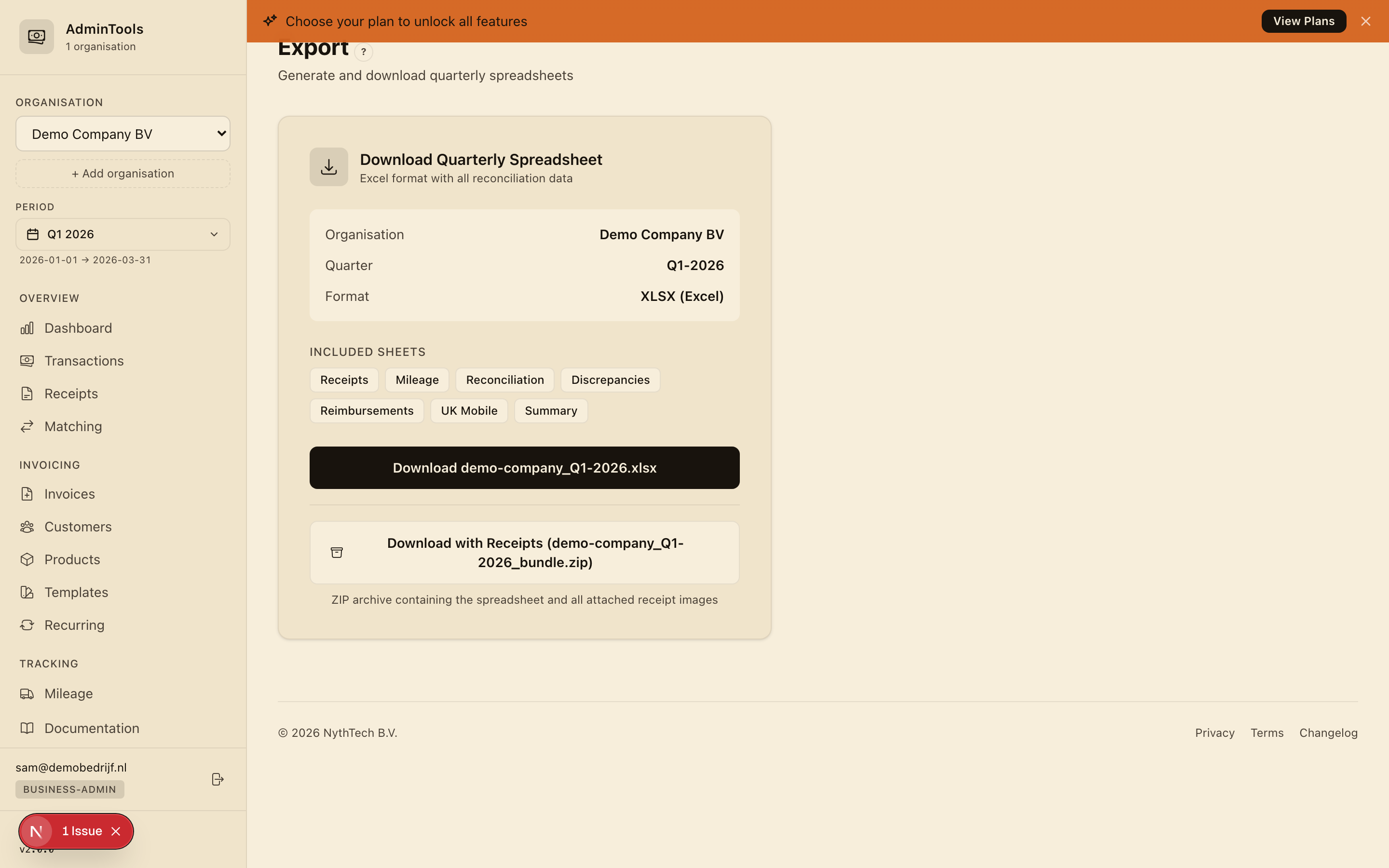
- Open the Export page.
- Check that the business and quarter shown are the ones you want — these come from your current selection at the top of the app.
- You'll see a summary card listing the sheets that will be included, shown as small badges.
- Click the download button.
- Your browser downloads a single file named after your business and quarter — for example,
riverbend-studio_Q1-2026.xlsx.
That's it. There's nothing to assemble by hand; the app pulls together your transactions, receipts, matches, mileage, and reimbursements automatically.
A plain tour of the sheets
The workbook is organised so your accountant can find anything in seconds. Here's what each sheet covers.
Purchases
A line-by-line overview of every expense in the quarter. Each row carries the date, a description (supplier and notes), and the amount placed in the right category column — things like food, rail, car, parking, hardware, accountant fees, and so on. Categories are filled in automatically using your categorisation rules, so similar suppliers always land in the same place.
Each row also records the net amount, whether BTW applies, the BTW amount, and the total. At the bottom you get totals for every category, the total purchases for the quarter, and the amount owed back to you for anything paid from a personal account.
Mileage
Your business trips for the quarter, logged at the Dutch tax-free rate of €0.23/km. The sheet lists each trip with its date, starting point, destination, purpose, and business kilometres, then totals the kilometres and multiplies by the rate. That mileage total feeds back into the amount owed to you on the purchases sheet.
Bank reconciliation
A side-by-side cross-reference of your bank transactions against your purchase invoices. For each one you see the date, the bank description and amount, the matched invoice number, supplier and amount, the match confidence (high, medium, or low), and a status. Rows are colour-coded so your accountant can scan at a glance:
- Green — matched with high confidence
- Amber — needs a quick review
- Red — unmatched or a discrepancy to look at
Discrepancies
Everything that didn't line up cleanly, in plain language:
- Invoice with no payment — a purchase invoice with no matching bank transaction
- Payment with no invoice — a bank transaction with no matching invoice
- Amount mismatch — an invoice and payment were found, but the amounts differ
- Duplicate payment — more than one transaction matches the same invoice
Each row shows the reference, amount, a readable description, and whether it's open, resolved, or dismissed — along with any notes on how you sorted it out.
Reimbursements
A record of anything you paid for out of your own pocket. Each line shows the date, invoice number, supplier, and amount, plus whether you've been paid back yet. A running balance at the bottom shows what the business still owes you for the quarter.
Summary
A one-page quarter-at-a-glance: total expenses, matched transactions, open discrepancies, total mileage in kilometres and in euros, and pending reimbursements. It's the page your accountant will likely read first.
Foreign-currency expenses and the exchange-rate trail
If you have expenses in another currency — for example a bill paid in pounds — the app converts them to euros for you using the official European Central Bank reference rate for the date on the bill.
Crucially, the conversion isn't hidden. The export keeps a full audit trail: the original amount, the date used for the rate, the exact exchange rate applied, and the converted euro amount. Your accountant can see exactly how every foreign-currency figure became a euro figure, which keeps your BTW return defensible.
Tip: Your euro formatting, BTW rates, and mileage rate all follow your business's country settings. For a Dutch business that's euros, 21% / 9% BTW, and €0.23/km — already set up for you, with nothing to configure.
Giving the file to your accountant
The exported spreadsheet is self-contained — there's nothing your accountant needs to install or log in to. Once you've downloaded it, you can email it across, drop it in a shared folder, or upload it to their portal, just like any other file.
If you'd rather your accountant pull the numbers themselves, you can instead give them scoped access to your business so they can view your quarter and run the export on their own. See Inviting your team and your accountant for how that works.