The app on your phone
The iPhone companion app puts the parts of your bookkeeping you do on the move right in your pocket. Snap a receipt the moment you get it, log a business trip from the car park, and keep an eye on the quarter without opening a laptop. Everything you capture syncs back to your account automatically.
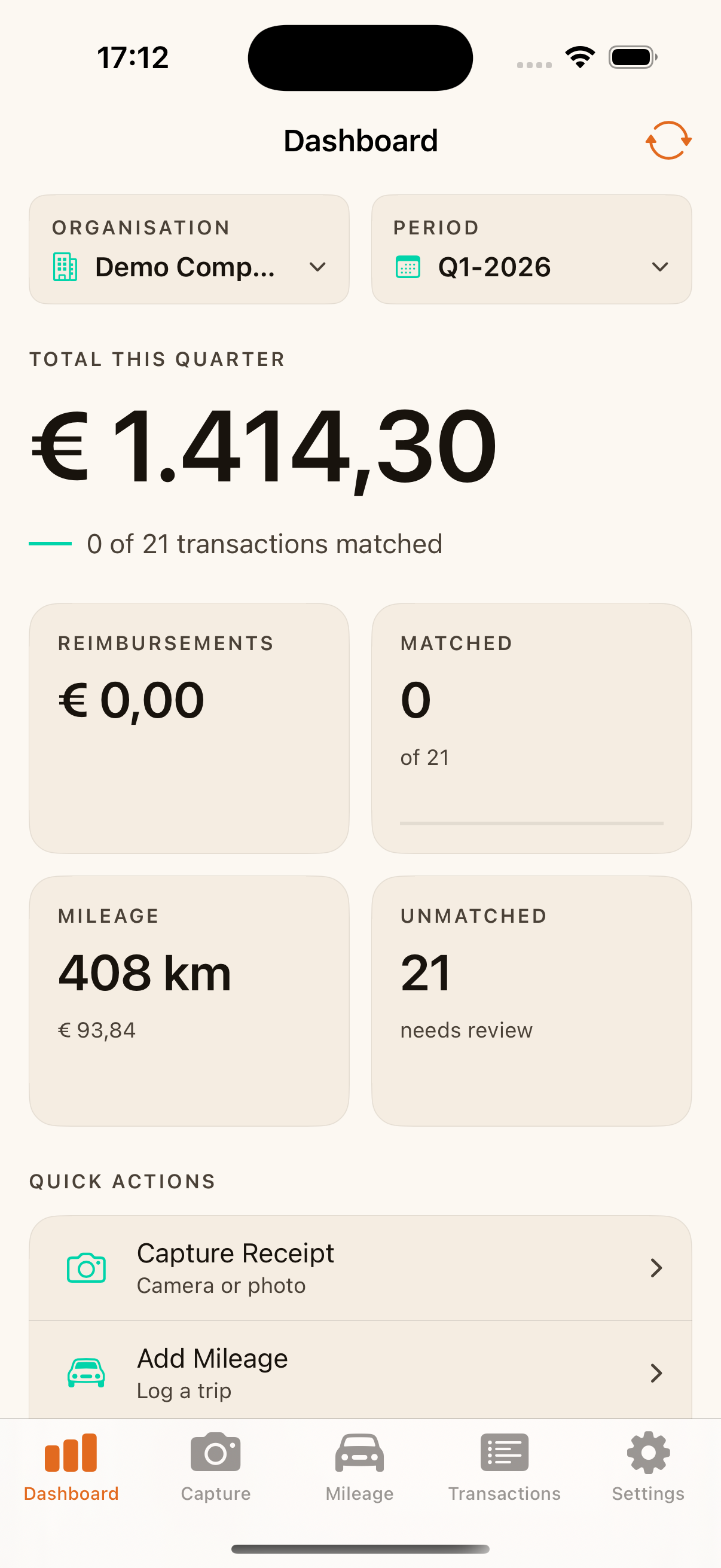
What you can do on your phone
The app is built around the handful of things that are easiest to do in the moment, away from your desk:
- Capture receipts with the camera, so paper never piles up.
- Log business mileage at the Dutch tax-free rate, with saved routes for trips you make often.
- Review your dashboard — your headline numbers for the quarter, at a glance.
- Check your bank transactions and see which ones still need attention.
- Get reminders when matches need a look, a new discrepancy appears, or a quarter deadline is approaching.
You move between these in five simple tabs along the bottom: Dashboard, Capture, Mileage, Transactions and Settings. The app is available in Dutch, English, German, French and Spanish, and follows your phone's language automatically.
Snap a receipt and let the app read it
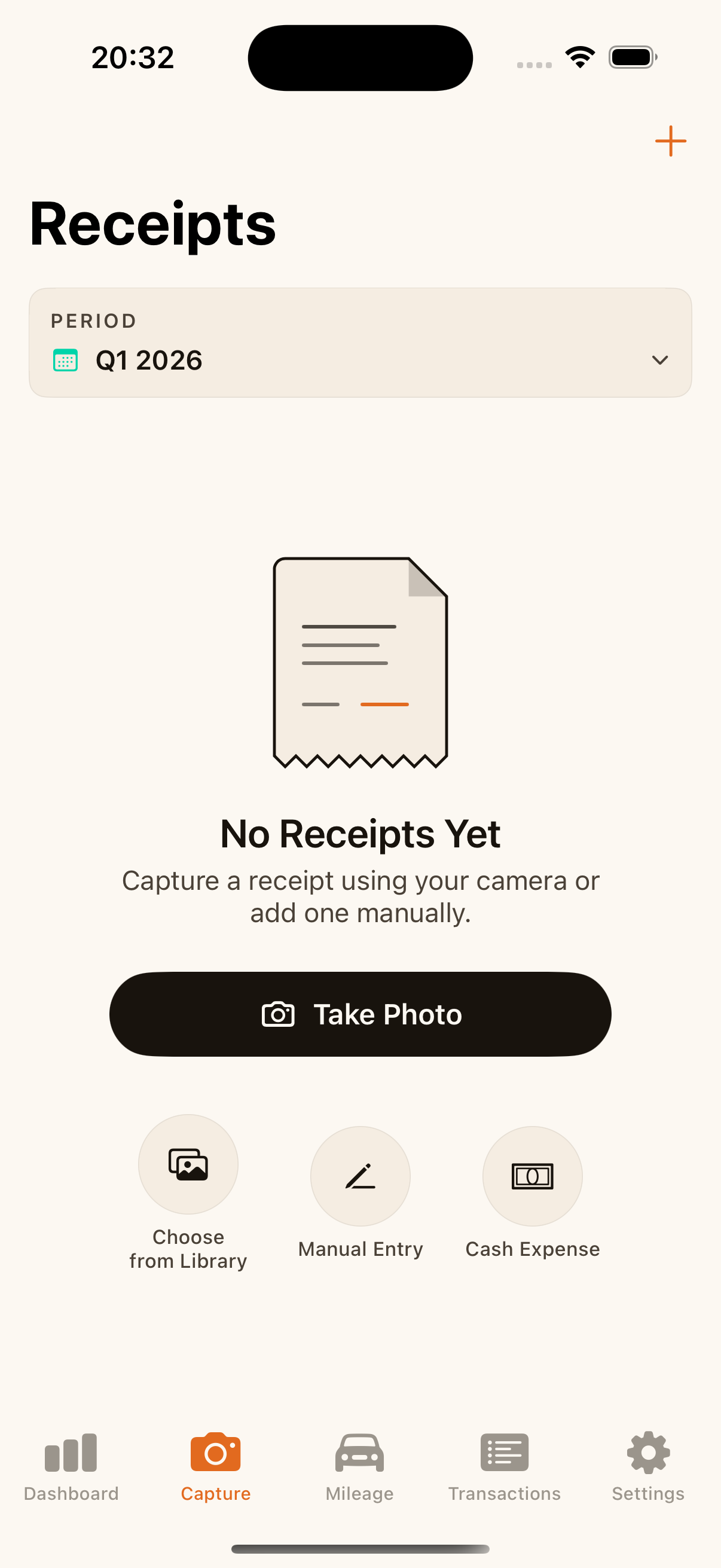
The Capture tab is the fastest way to get a receipt into your books before you lose it.
- Open the Capture tab and tap to take a photo.
- Line the receipt up in the frame and take the picture. The flash fires automatically in low light.
- The app reads the receipt for you and fills in the supplier, total, BTW (VAT), date and reference.
- Check the read-back fields, correct anything that looks off, and pick a category.
- Save. The receipt is stored on your phone straight away and uploaded to your account in the background.
Tip: A flat, well-lit receipt against a plain surface reads best. If a field looks wrong, just tap and fix it — your correction is what counts, and the app gets better at similar receipts over time.
Your captured receipts live in a gallery in the Capture tab, so you can scroll back through what you have already photographed.
Log mileage on the go with saved routes
The Mileage tab lets you record a business trip in seconds, calculated at the Dutch fiscal rate of €0.23 per kilometre.
To log a trip:
- Open the Mileage tab and start a new entry.
- Set the date, then fill in from, to, the distance in kilometres, and the purpose of the trip.
- As you type the distance, the app shows the euro amount live, so you can see exactly what the trip is worth before you save.
- Save the trip. It is stored on your phone and synced to your account.
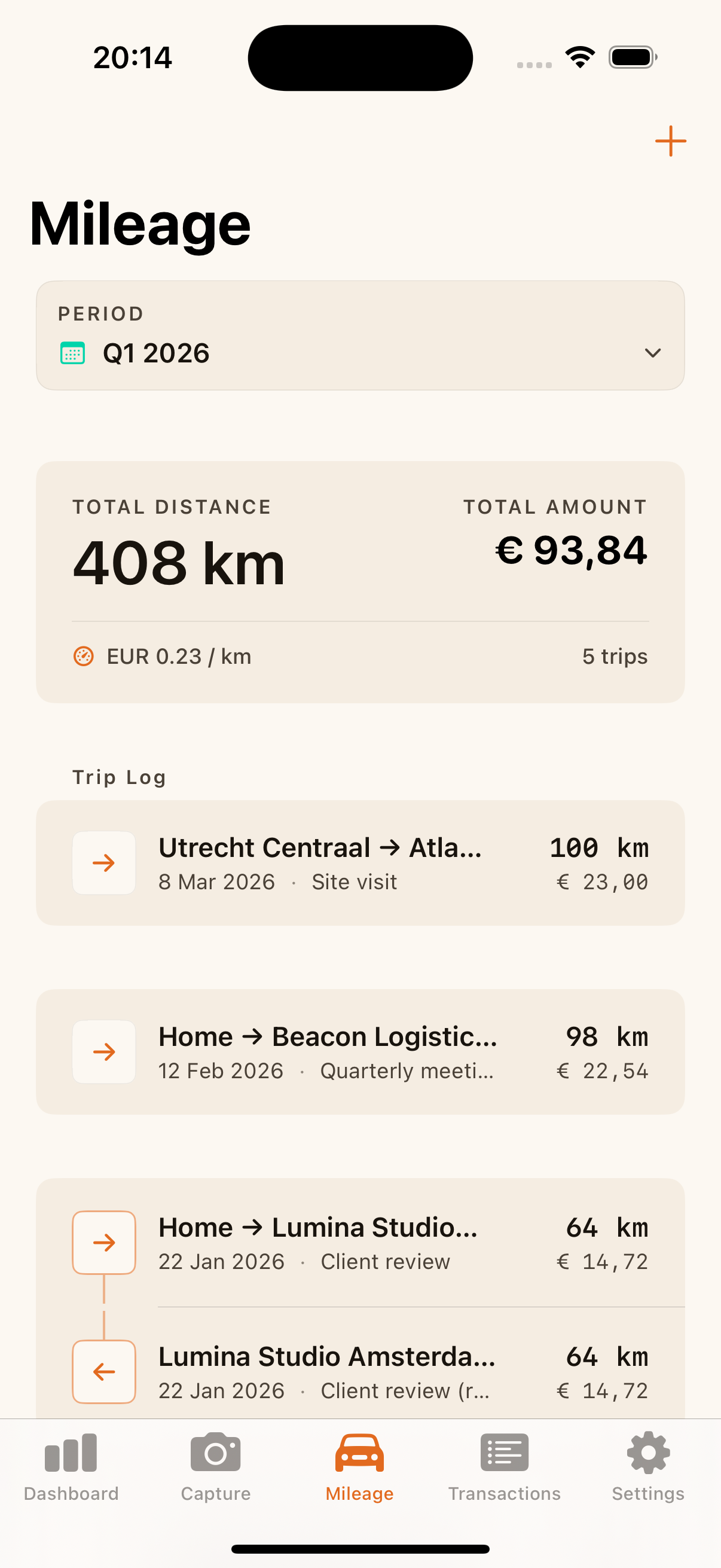
Saved routes for trips you make often
If you drive the same route regularly — say between your office and a regular client — save it once and reuse it. Saved routes appear at the top of the entry form; tap one and the from, to and distance fill in for you. All that's left is the date and purpose.
Works offline, syncs when you're back online
The app is built to work without a signal. Everything you capture or log is saved on your phone first, so a tunnel, a basement car park or a flaky connection never gets in your way.
- Receipts and mileage you add offline are saved immediately and queued for upload.
- When your connection comes back, the app syncs automatically — you don't have to remember to do anything.
- You can also tap Sync Now on the dashboard whenever you want to push things up straight away.
If the same record exists in two places, the version on your account is treated as the source of truth, so your books stay consistent across your phone and the web app.
Reminders that keep the quarter on track
The app can send you a notification so the important moments don't slip past. You stay in control of which ones you receive, from the Settings tab:
- Matches to review — when transactions and invoices need a manual look.
- New discrepancies — when matching turns up something that doesn't line up, such as an invoice with no payment.
- Quarter deadline — a reminder about a week before the quarter closes, so there's time to finish up.
The first three are on by default. You can turn any of them on or off whenever you like.
Switching business and quarter on mobile
If you look after more than one business, you can switch between them right from the app. At the top of the Dashboard you'll find a picker for your business and another for the quarter you're viewing. Change either and your KPI cards and charts update to match — the same totals you see on the web, kept in step.
Getting the app and signing in
- Install the app from the App Store on an iPhone running a recent version of iOS.
- Open it and sign in with the same email and password you use for the web app.
- That's it — you'll land on the dashboard for your business, and anything you capture flows straight into your account.
Your sign-in is stored securely on the device, so you stay logged in between visits without re-entering your password each time.
Where to go next
- New to receipts and matching? See Receipts and purchase invoices and Matching and discrepancies for the full picture on the web.
- Want the detail on mileage at the desk too? See Mileage and reimbursements.
- Closing the quarter? Head to VAT/BTW and your quarterly export for the accountant.